Greetings Steemians,
If you have a dusty Raspberry Pi that's been sitting around like I did, maybe it's time to blow the dust off of it and put it to good use.
If you're a noob to Linux like me, you might need a little help to get up and running. In my first tutorial How To Set Up A Raspberry Pi With No Monitor, I show you how to set up the operating system and access the system with no monitor.
In this tutorial, we'll be working on the premise of still no monitor, but accessing the PI with a GUI (Graphical User Interface.)
For a noob this might be pretty important, or even a seasoned Linux user. (Depending on what you want to use your RPI for.)
What we will cover in this tutorial:
- How to install a minimal GUI. (low on system resources.)
- How to log into the GUI via Windows Remote Desktop Connection.
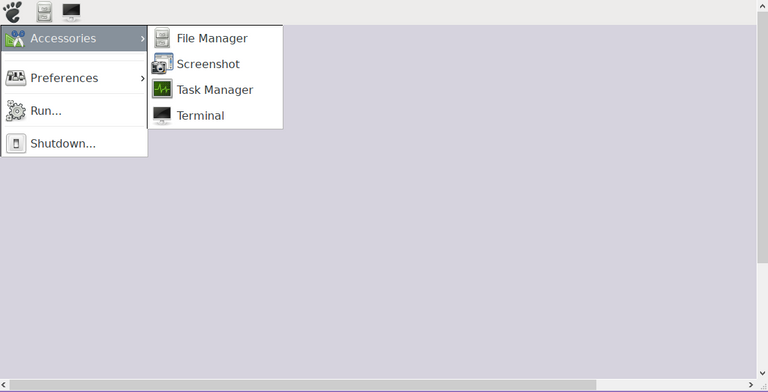
Raspberry Pi Desktop (RPD)
Above is a screenshot of Raspberry Pi Desktop (RPD) taken directly from my Windows PC Via Remote Desktop Connection! No extra monitor needed!
Pretty cool right? Lets get started with some essentials you will need. I'll supply the commands, and all you need to do is paste them into your terminal via SSH. Refer to How To Set Up A Raspberry Pi With No Monitor for instructions on SSH.
Begin by installing Xorg Display Server:
sudo apt-get install --no-install-recommends xserver-xorgNext we need xinit:
sudo apt-get install --no-install-recommends xinitWe will also need XRDP for the Remote Desktop Protocol:
sudo apt-get install xrdpFor the basic desktop environment:
sudo apt-get install raspberrypi-ui-modsIf you want the ultra stripped down version (like me), you can install the bare essentials version with this command:
sudo apt-get install --no-install-recommends raspberrypi-ui-mods lxsessionIf you decide to utilize the stripped down version, you may want to consider installing these packages:
sudo apt-get install pi-greeter : The Raspberry Pi LightDM login themesudo apt-get install rpd-icons : The Raspberry Pi Desktop icon themesudo apt-get install gtk2-engines-clearlookspix : GTK Theme Engine (used to render Raspberry Pi LightDM login/desktop theme properly)Some other desktop environments:
LXDE GUI:sudo apt-get install lxde-core lxappearance
XFCE GUI:sudo apt-get install xfce4 xfce4-terminal
MATE GUI:sudo apt-get install mate-desktop-environment-core
These other three will be heavier on your system resources. The Raspberry Pi is a micro computer, with pretty limited specs. If utilizing a GUI with higher aesthetics, expect a less responsive system.
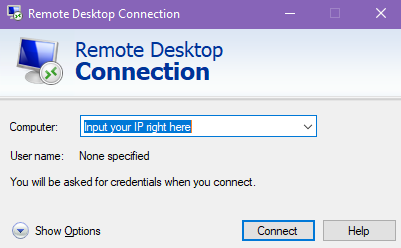
Assuming you've chosen one of these GUI's and everything is now installed, logging into a remote environment on your Windows PC is super easy! Remote Desktop Connection should already be on your computer as a built in Windows feature, so you do not need to install an alternate remote viewer! (unless you want to, but this one works pretty good.)
Just like with SSH you will need your local IP address:
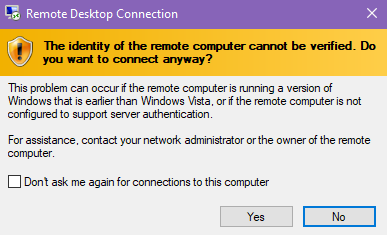
If you panic and click no it will never work, so just click yes!
You will be greeted with:
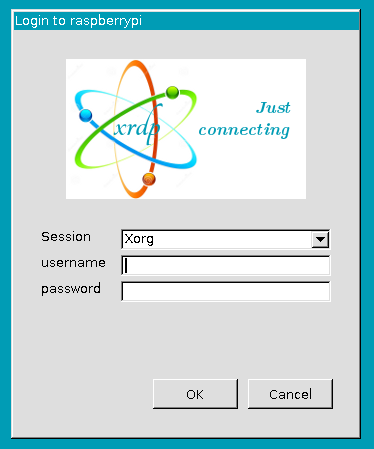
It feels so Windows 98! :)
The same credentials as you use for SSH will be used to login to the remote environment. Username is pi by default, and raspberry is the default password, but if you read the initial tutorial, then you undoubtedly created a new password for security reasons!
Go ahead and input your username and password now:
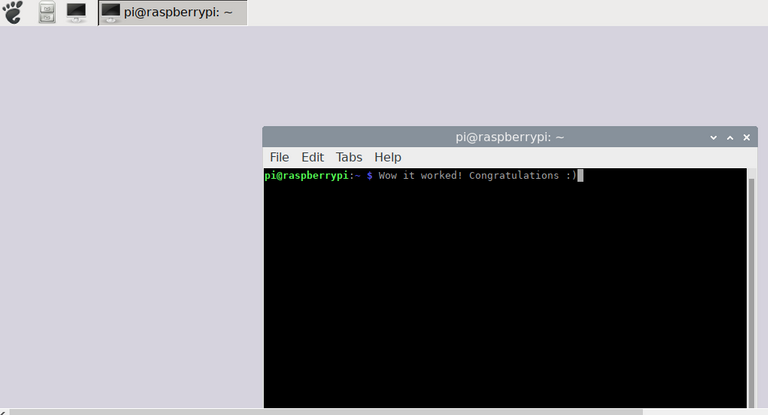
And that's it! Your remote session will begin. You can simply minimize it when not testing out new applications which require a GUI, and if you do happen to have another monitor, you can run dual on your Windows PC and throw this over in the second display. This will save you the extra wires of having to hook up another keyboard and mouse.
I'm having a great deal of fun with the Raspberry Pi lately, and I think my next project might be Retropie. I'm fortunate enough to have a wired game controller, and I have set up Retropie before. It really works flawlessly for retro gaming.
So stick around for more to come in the future, and thank you for stopping by! I hope you're all having a wonderful day!
Much love,
@futuremind

Posted with eSteem Surfer

Hi @futuremind, do you think the Raspberry is useful for mining?
Posted using Partiko iOS
Hi friend,
As far as I know, no.
Raspberry Pi can be used for mining, but the efficiency is so low that it's not worth the time unless you are just doing it as a project expecting little to no income.
The Pi utilizes an ARM processor, which is very efficient, but still nowhere in the range of processing power needed for profitable mining.
There have been some cool projects involving multiple Pi's, alongside of ASICs hardware, but these are just projects and not serious mining operations.
To buy multiple Pi's, and combine them with ASICs hardware, it would probably take the rest of your life to make your investment back, maybe even longer.
You could make a Bitcoin Lottery machine with a single Raspberry Pi, but your odds of getting a payout are less likely than getting struck by lightening.
I hope this answers your question :)
Hi @futuremind, you are great. I think that is a very useful tutorial. But I don't know Raspberry Pi yet. Maybe I should read a lot more about new things. Have a nice day.
Thank you so much for your kind words my friend.
The Raspberry Pi is a cool computer chip that is inexpensive in comparison to full size computers. You can read about it here.
Thank you for stopping by miss, have a great day.
Thanks for using eSteem!
Your post has been voted as a part of eSteem encouragement program. Keep up the good work! Install Android, iOS Mobile app or Windows, Mac, Linux Surfer app, if you haven't already!
Learn more: https://esteem.app
Join our discord: https://discord.gg/8eHupPq
Many thanks eSteem!
Hi, @futuremind!
You just got a 29.29% upvote from SteemPlus!
To get higher upvotes, earn more SteemPlus Points (SPP). On your Steemit wallet, check your SPP balance and click on "How to earn SPP?" to find out all the ways to earn.
If you're not using SteemPlus yet, please check our last posts in here to see the many ways in which SteemPlus can improve your Steem experience on Steemit and Busy.
Many thanks steem-plus!
Does xrdp get installed by one of those packages?
No it does not, and it is necessary for the remote desktop protocol. Not putting it in the tutorial was an error. Updating at once. Thank you for bringing that to my attention.
Your welcome, I use xrdp on any RPi that has a full install so that I can remote from a windows computer.
Hello,
Your post has been manually curated by a @stem.curate curator.
We are dedicated to supporting great content, like yours on the STEMGeeks tribe.
If you like what we are doing, please show your support as well by following our Steem Auto curation trail.
Please join us on discord.