Let's sculpt the default cube in Blender 2.8 to a nice sword,

Steps:
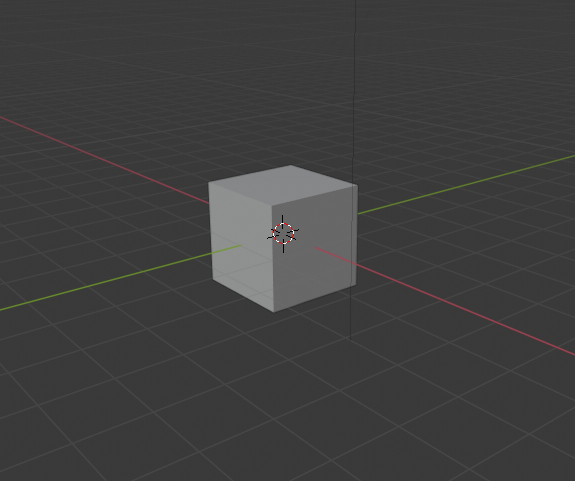
The innocent cube
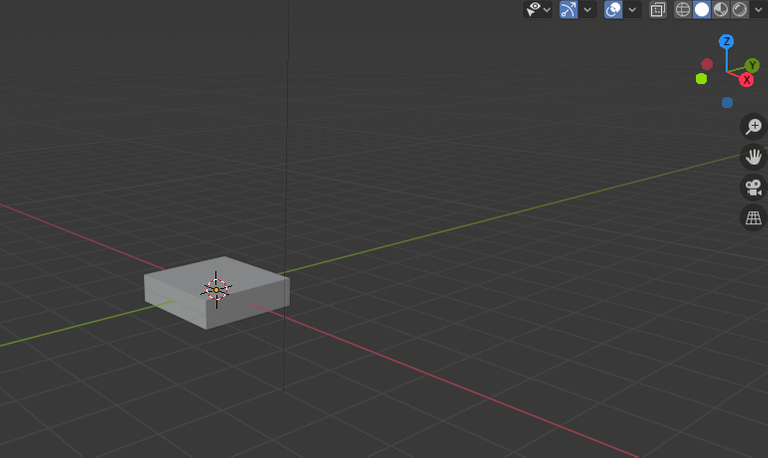
Press S to scale and z to scale in z direction
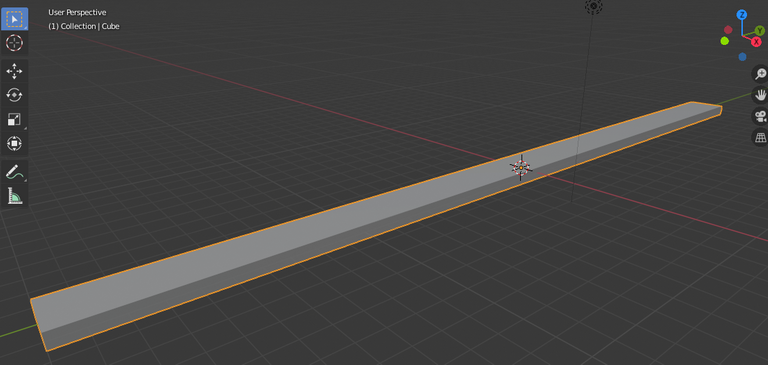
Press S to scale and y to scale in Y direction, scale until you have the desired length, don't worry you can extend later by moving the vertices

Press Ctrl+R to create loop cuts in the body, create two as shown

Select the cut faces and press alt+e and select the extrude normal to face option
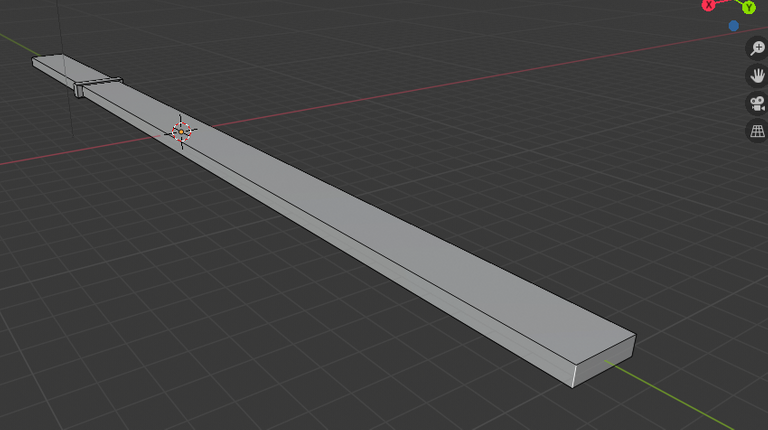
You have a nice handle limit and now select the top edge of the blade area and press g to move and then press y to move in y direction
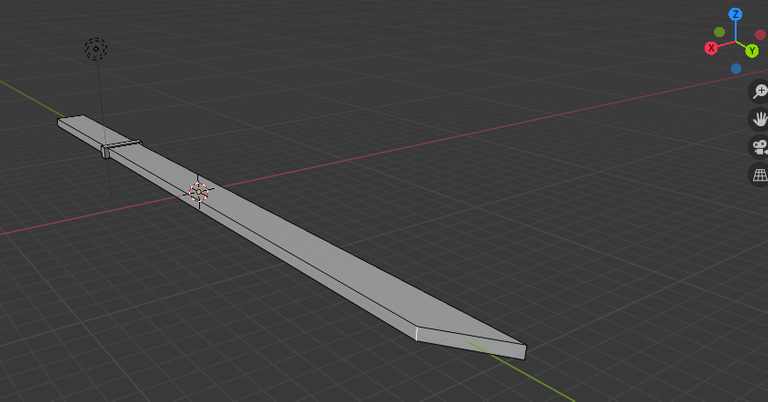
Then you get this sharp blade shape
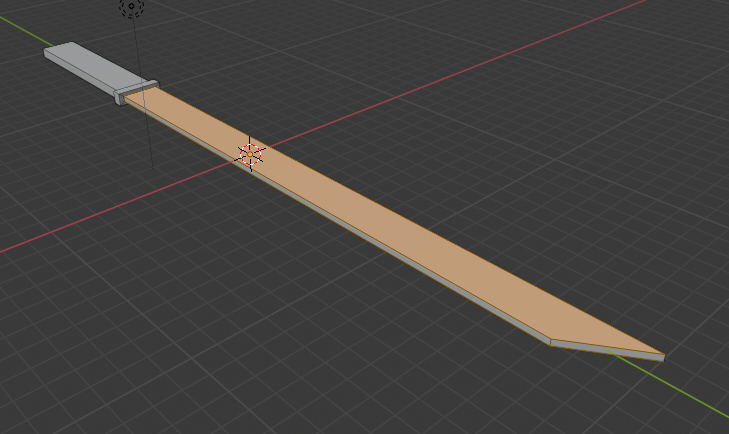
If you like you can select the top face and move it down to make the blade more thin, do this by pressing g and z to move it down in z direction
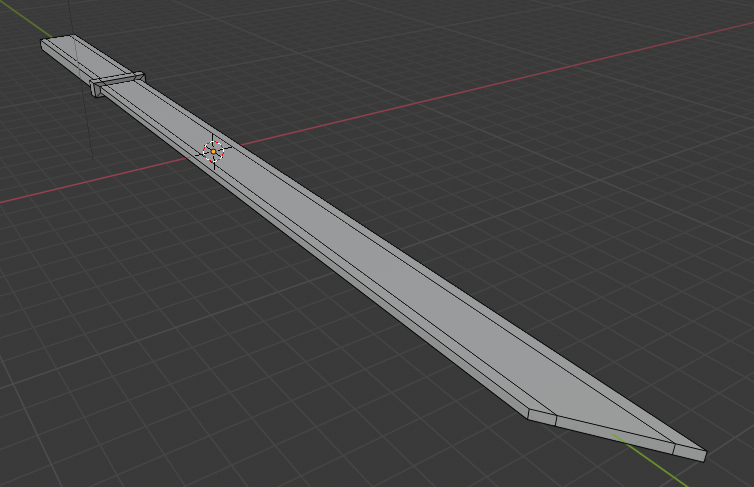
Press ctrl + R to create more loop cuts
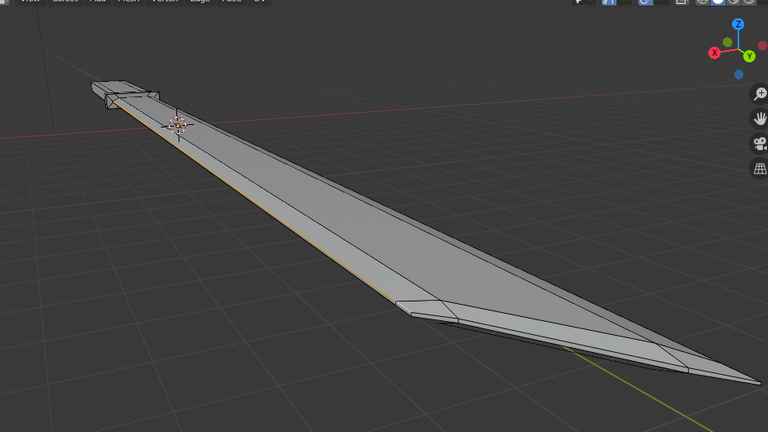
Now select the edges and move in Z direction, this makes the sides thinner and gives a sharp effect
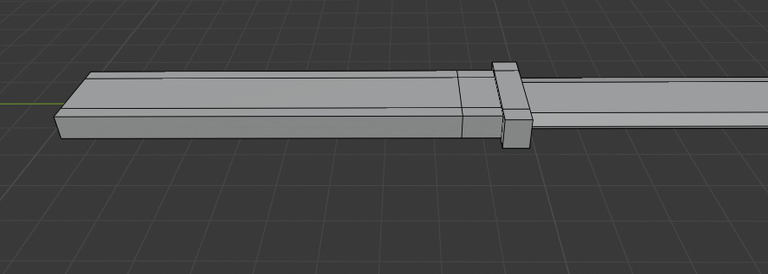
You can add loop cuts on the handle to create some depth and to give it some detail
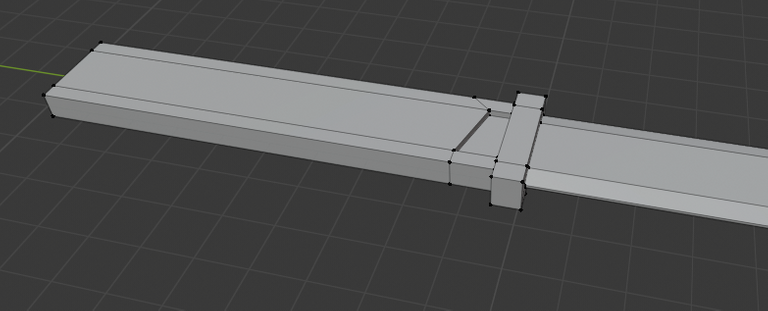
Select the face and extrude down
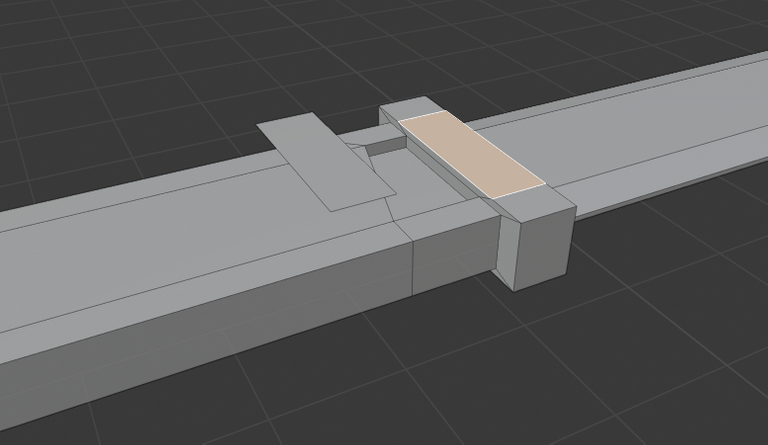
Press shift D after selecting a face to duplicate it, move it using x, y or z keys
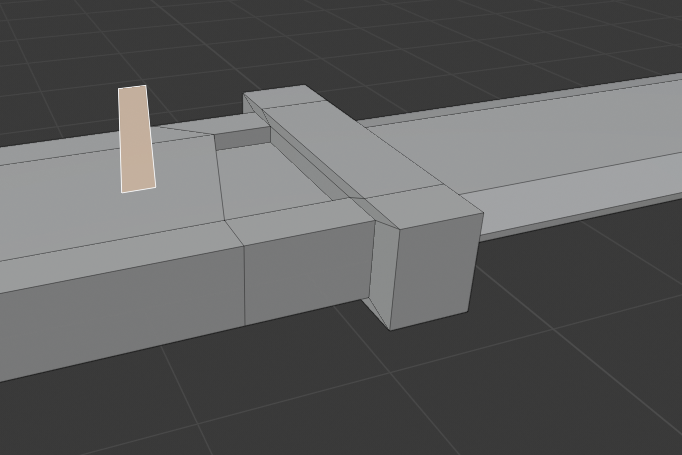
Move the vertices to modify the shape a little bit and then press e to extrude and give it a thickness

Seperate the face by right click and go to seperate option
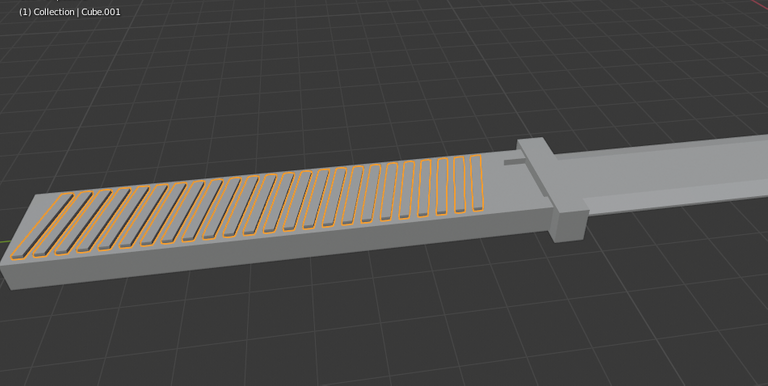
Go to modifier tab and add Array, and set the values to 1 in Y direction, and the count to maybe 12-15 depends on your handle length
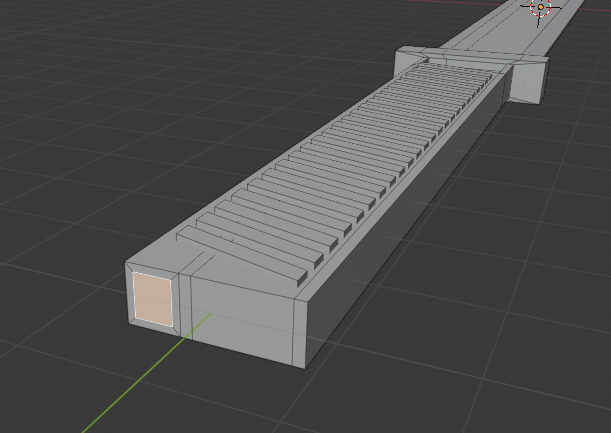
Now lets add some detail below the handle, select a small face and press i to inset (make it smaller)
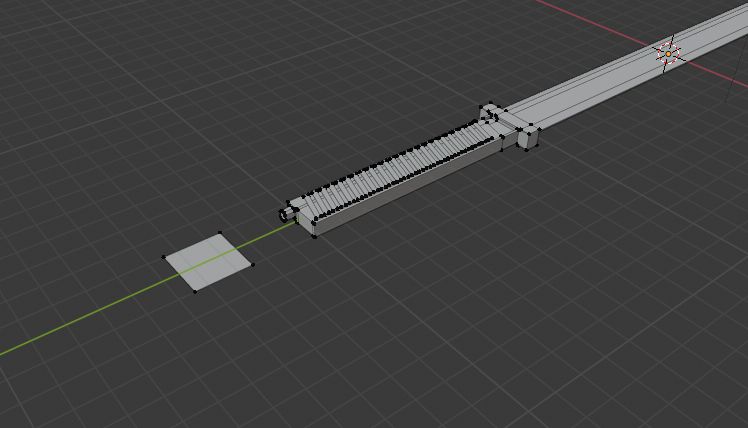
Add a plane
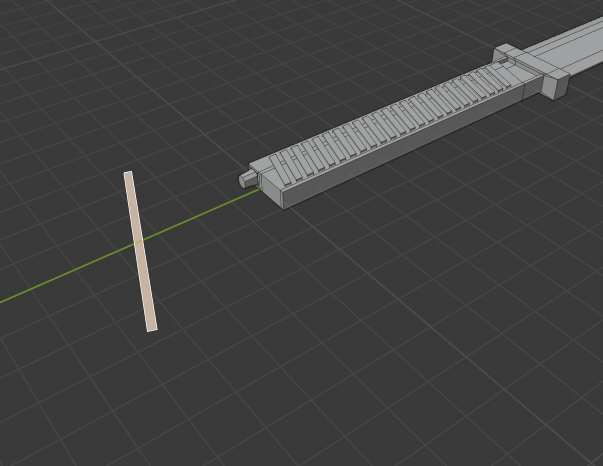
Modify the vertices to make it like a long piece of cloth
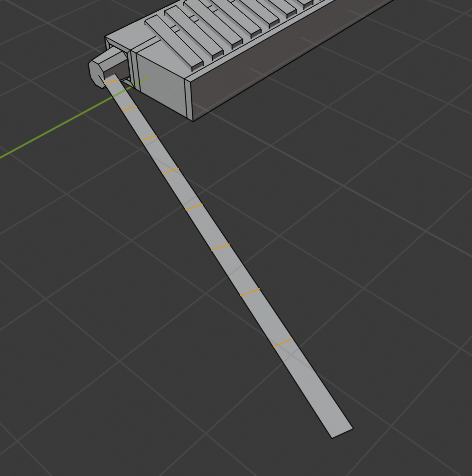
Move it to the newly created handle pin and press ctrl + R to loop cut it (top use mouse wheel to create more loop cuts at one go)
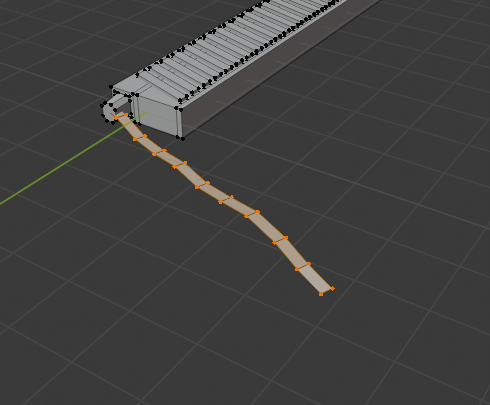
Move the edges up or down to create a random cloth or ribbon look
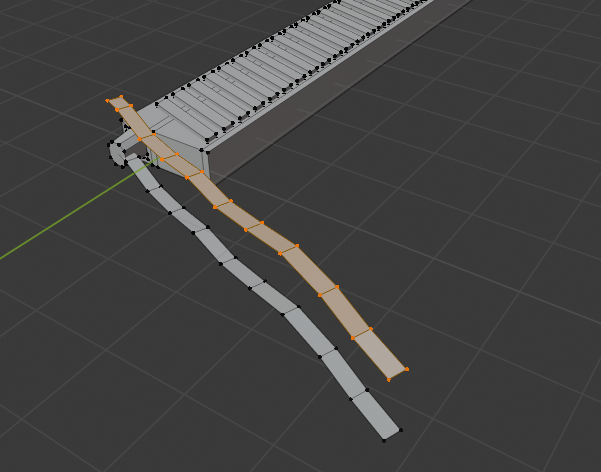
press shift+D to duplicate it, then scale it rotate it and place one end to the handle pin
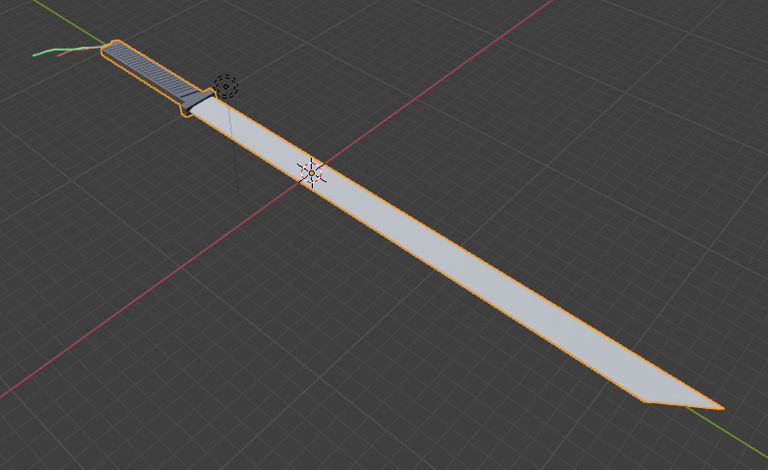
Now you can proceed to color it
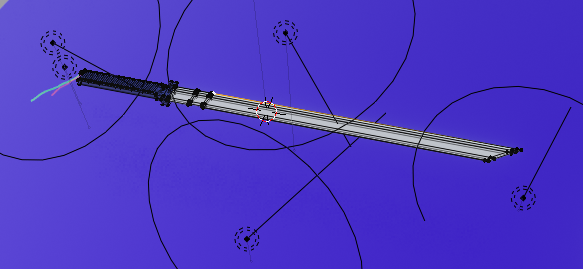
Here is an idea to give it some light and a good look

Tip - you can create some loop cuts on the blade area and move it in to give it some character

Place a plane in the background and add a color to it and voila you have a nice Blade ready for action
Hope it was helpful guys
👋 Hi @ashwinpremnath, I was flipping through the blockchain and stumbled on your work! You've been upvoted by Sketchbook / a community for design and creativity. Looking forward to crossing paths again soon.
✅ Join the Sketchbook Community