
Scale a Object in FreeCAD is a very awesome tool. It is very useful for 3D Printing to create separate solid without any effort. In this article we will learn How to scale object in FreeCAD with the help of draft Workbench. Now open your part that you want to scale and activate draft workbench in my case i have open my part and switched to draft workbench as shown in below image.
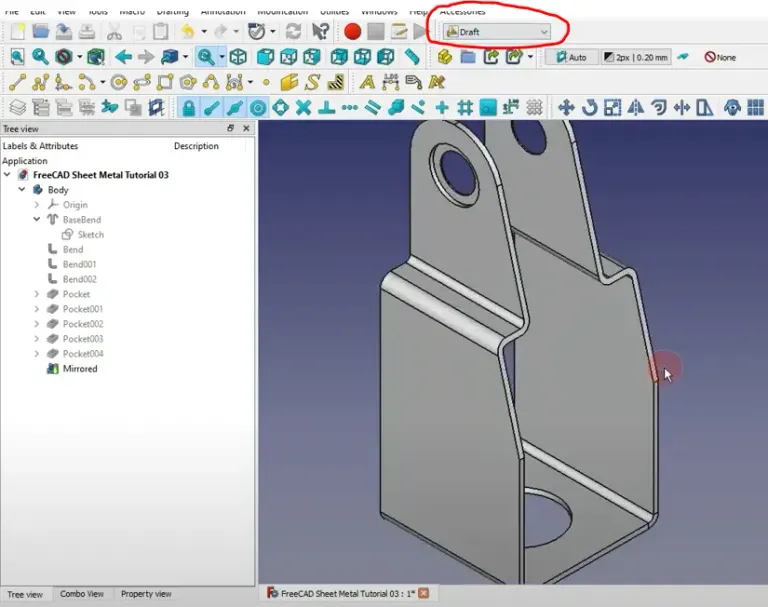
To Scale the object first we have to create a line. In my case I have created a line As shown in below image.

Once you created the line now Select body click Scale option as shown in below image.

Now you will get Scale option here we have to define a point and out object will be scaled with respect to this point. Click on enter point and then click on mid point.

Now place a Point on Mid of our created line.

Now all we have to give Scale Factor In my case i have given scale factor 2 time and my model got scaled.

In this tutorial we have learned how to scale object in FreeCAD. best part is scaled body act as independent solid which you can export in different file format especially in STL for 3D printing.
“Thank you for reading! If you found this article insightful and valuable, consider sharing it with your friends and followers on social media. Your share can help others discover this content too. Let’s spread knowledge together. Your support is greatly appreciated!”
Posted from my Blog https://mechnexus.com with Exxp: How to Scale Object in FreeCAD
Watch Video Version of this Tutorial-: