
Introduction:
Hi Anidel Here once again for another tutorial. Today I will explain how to configure VLC so that you can remotely control it using any Android device. You can also use this configuration to stream audio and video files. I will keep the tutorial as short and simple as possible for everybody.
Requirements:

VLC player. You can download a copy here. This is the main application that we want to access or control remotely.
VLC Direct Pro. This is a FREE android app that we will use to connect to the VLC application installed in the PC.
Procedure:
STEP 1 Check if the PC and Android Device Share the same network
After successfully installing the required software in your PC and Android device we have to make sure that the computer where the VLC is installed and the Android device where the VLC Direct Pro are sharing the same network by checking your local IP address of the computer and the Android device. You can do this by checking if the local IP address of the address of the PC and the Android device.
To check your local IP address on the PC we need to go to the "command prompt." (For Win 7 and Win 8 please watch this videos respectively 1 2) by pressing and holding the "Window key" and then press "R key".

Image source

This will bring you to the "Run window". In this windows type in "cmd" to open the "command prompt window" as shown below:

RUN WINDOW

COMMAND PROMPT
Once you are in the command prompt type in "ipconfig" and press enter to get your local IP address of the computer where the VLC is installed. You should get a response like this (I have already indicated the local IP address in the screentshot):

Please take of this address as it will be needing it later when we configure the settings VLC Direct Pro in our Android Device. In this case we can see that the local IP address is "192.168.1.130"
Now we go to your Android device. First we have to access "Settings".

After tapping the "Settings icon" we will be brought to the "Setting Page". Scroll down and select "about" (sometimes they call it "about this device")

Upon tapping about this will bring you to the "About page" where you can access the "Status Page"

Once you tap the "Status" it should bring you to the "Status page" where it gives you network information including your current local IP address

The local IP address of the Android device as shown in the above screenshot is "192.168.1.125" Which means that the Android device and the PC is sharing the same network since they have the same network address prefixes "192.168.1" (Please recall that the local IP address of the PC was 192.168.1.130).
STEP 2 Configure the VLC application installed in the PC
Open the VLC application in your PC. Once in the VLC application go to "Tools menu" and select "Preferences". When you are in the "Preferences Page" Select the "All" radio button located at the lower left side of that page to go to the "Advance Preferences Page."


In the "Advance Preferences Page" Select "Main interfaces." At the right portion of the page you will see some ticker boxes. Please tick the "Web" ticker box. Make sure that the word "http" appears at the field just below the ticker box selection. After selecting the Web ticker box double click on Main interfaces to expand it and go to the Lua interpreter page.

In the "Lua interpreter page" we just need to input our desired password (in this case I used "ankarlie" as the password) and then click on save to save the settings.

After Saving the configuration you will be brought back the the VLC main application. To make sure you already configured the VLC application properly please restart the application by closing and opening it again. When you open the VLC application it will send out a "Windows security alert" no worries it is just asking you if you will let VLC application be accessed from the network. Select "Allow access." Now we are done configuring the VLC application. DO NOT CLOSE THE VLC. we need it open to connect the VLC Direct Pro Android App.

VLC MAIN PROGRAM PAGE

STEP 3 Configure VLC Direct Pro
When you first open the VLC Direct Pro Android application it will ask you to connect the VLC Direct Pro to the VLC app installed in the PC. It will try to do this automatically by scanning your network for active VLC application and have you download a bat files and so on. YOU DON'T NEED TO DO ALL THOSE THINGS. All you need to do is reach the main dashboard of VLC Direct Pro and follow the these simple steps:
At the main dashboard of VLC Direct Pro tap three vertical dots lcoated at the top right of the screen to show the drop down menu then select "Settings" to bring you to VLC Direct Preferences page.

In the VLC Direct Preference page you just need to pay attention to two selections: Manual Configuration and HTTP Password (if you don't find it there please scroll down some ads my pop up). Tap the "Manual Configuration" to input the IP address of the PC and Tap HTTP Password to input the password we inputted when we configured the VLC PC application ( The password inputted was "ankarlie")

When me tap on the "Manual Configuration selection" it will bring us to the "Manual Setting page". Tap the VLC host selection to input the ***IP Address of the PC: "192.168.1.130." ***


After configuring the VLC server port (the IP address of your PC where the VLC is installed). The final step is to put the password in the HTTP Password selection:


After inputting the the password go back to the main dashboard of the VLC Direct Android app. Now you can browse through the contents of our PC using your Android Device. You can stream the multimedia files to your android phone or watch it in your computer.

Posted on Utopian.io - Rewarding Open Source Contributors
vr
thanks for the upvote red :)
wow! :) great tutorial. tnx again..
Thanks for visiting sir Ben :)
nice article with lot of info thanks for sharing. @ankarlie Resteem & Upvoted
You are most welcome @kamchore thanks for visiting my post today :)
Well tutorial @ankarlie really helpful
Hey @steemitglass. I am glad you found my article helpful.
thanks for your share @ankarlie, hopefully soon get approval from mod... and get big upvote ;)
I hope so it will get approved soon took me a couple of hours to do this article. It looks easy but actually when you try to do it it is tedious work.
right, but this is something interesting
Hey @ankarlie I am @utopian-io. I have just upvoted you!
Achievements
Community-Driven Witness!
I am the first and only Steem Community-Driven Witness. Participate on Discord. Lets GROW TOGETHER!
Up-vote this comment to grow my power and help Open Source contributions like this one. Want to chat? Join me on Discord https://discord.gg/Pc8HG9x
hello @ankarlie can you remove this?
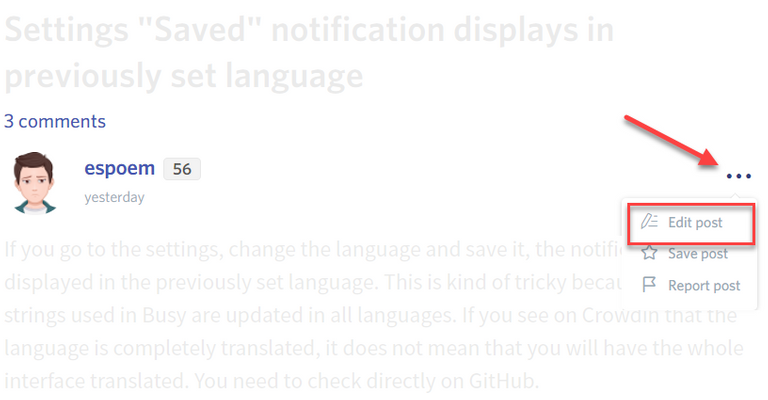
You may edit your post here, as shown below:
You can contact us on Discord.
[utopian-moderator]
@ruah sure i will.
@ruah okay done.
Approved.
Thank you so much sir :)
Congratulations! This post has been upvoted from the communal account, @minnowsupport, by ankarlie from the Minnow Support Project. It's a witness project run by aggroed, ausbitbank, teamsteem, theprophet0, someguy123, neoxian, followbtcnews/crimsonclad, and netuoso. The goal is to help Steemit grow by supporting Minnows and creating a social network. Please find us in the Peace, Abundance, and Liberty Network (PALnet) Discord Channel. It's a completely public and open space to all members of the Steemit community who voluntarily choose to be there.
If you would like to delegate to the Minnow Support Project you can do so by clicking on the following links: 50SP, 100SP, 250SP, 500SP, 1000SP, 5000SP. Be sure to leave at least 50SP undelegated on your account.
@originalworks
The @OriginalWorks bot has determined this post by @ankarlie to be original material and upvoted(1.5%) it!
To call @OriginalWorks, simply reply to any post with @originalworks or !originalworks in your message!