Linux Manjaro is Fast, Free and Secured OS and It's never been easier to use. If you are rookie or experienced user. This might be right OS for you.

Estimated reading time: 3 minutes and 10 seconds + your time on implementing Linux
This tutorial includes:
* How to prepare Linux Manjaro Image on Windows 10
* How to Boot Linux Manjaro properly
* How to Install Manjaro Linux
Read before Installation
Sometimes laptops and PC's are locked to just freely install Linux. Because corporations are paying billions to NOT use PC/laptop that is meant to be used. Through BIOS lockings, motherboards and rewriting saved settings in BIOS. Disabling Secure Boot in BIOS sometimes requires supervisor password set. Check if there're problems with installing Linux on your model of PC/laptop/pie whatever. Be sure of that do you want risk a little. You can always back to Windows :(.
This tutorial requires a little knowledge about:
- BIOS
- Linux
Preparing Linux Manjaro Image on Windows 10
- Download Linux Manjaro. Link: https://manjaro.org/
- Download Rufus https://rufus.akeo.ie/
- Plug your USB Stick in USB port.
- Backup things you want from that USB.
- Choose to format your USB stick.

- Click Restore device defaults and Click Start.
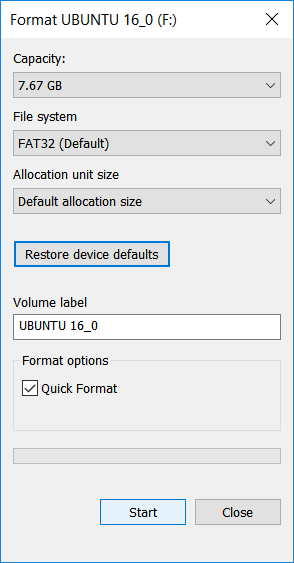
- Click OK.

- When it's done. Click OK.

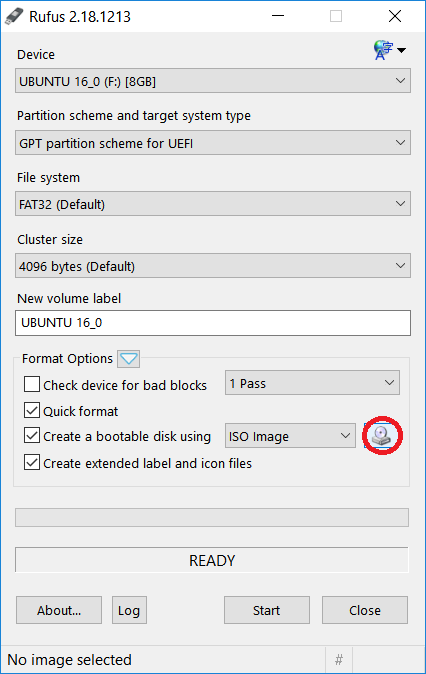
- Run Rufus as Administrator. Choose settings that picture below shows. BEWARE to choose right USB stick (with right letter D:/E:/F:).

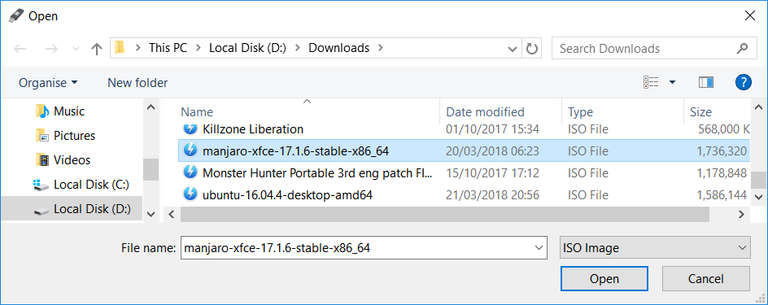
- Click on CD/Drive icon and choose manjaro-xfce-17.1.6-stable-x86_64 (Linux Manjaro that you downloaded).
- Click Open.
- Click Start.
- Choose write in ISO Image mode. Click OK.

- Click OK and again OK (if asks).


- Wait for it.

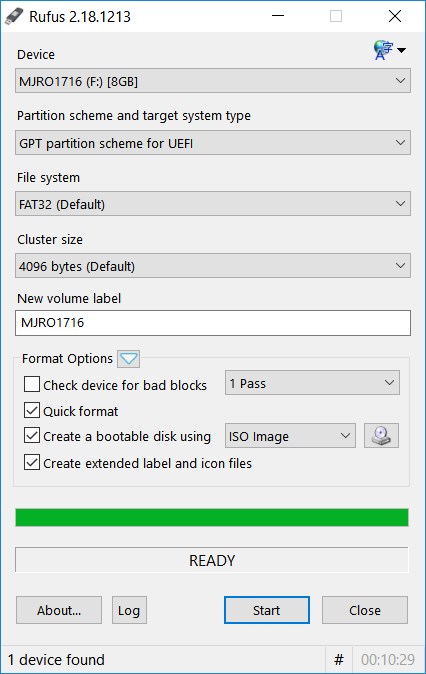
- When it's done, Click close.
Boot Manjaro
Before you start booting, google your PC/Laptop Bios keys. In my case for Acer laptop Aspire ES 15 is key F2 (For others might be F8, F12, F11, DEL).
To access bios, restart or power on your PC and immidiately start pressing key (F2 or which one works for you) to get to the BIOS. After getting to BIOS do next:
- Disable Secure Boot.
- Change boot priority in way to put USB on top of list. Boot device that is on the top, will try first to boot from there.
(F5 or F6 to push it to the top). - Use UEFI booting.
- Save Bios Options.
- Restart PC and wait for boot.
- This should appear after restarting. You can change driver free or non free, your choice. With arrows choose boot and Press Enter.

- This should happen after Enter.

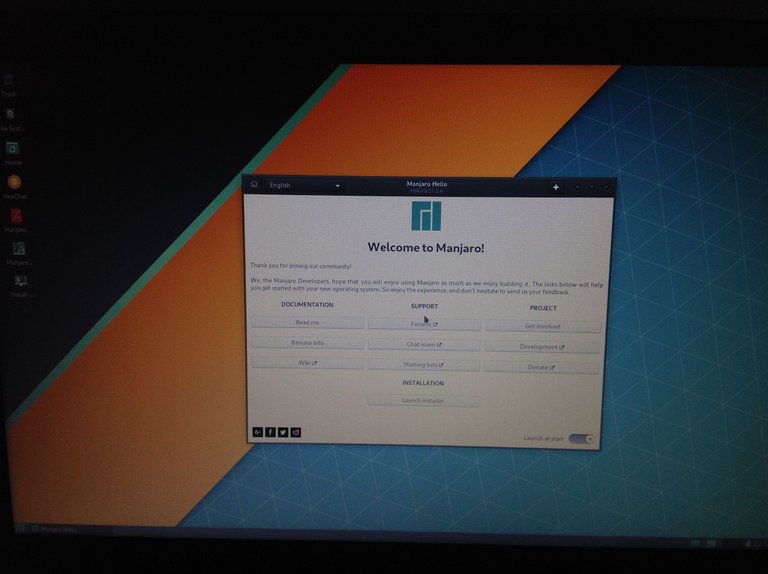
- And of course this, LIVE linux Manjaro. How should Linux look after you install it, but you didn't install it yet. This is only in your RAM, not on HDD. In order to install it proceed to next steps.
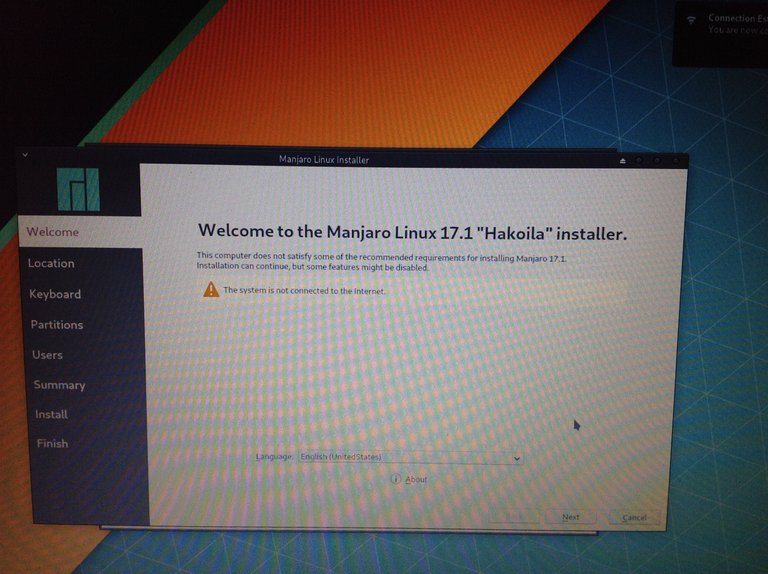
- Put laptop on charging if needed and connect to your Wifi in order to get updates and right packages. Then click Next.
- Choose your location, change language of system and numbers and dates. Then click Next.

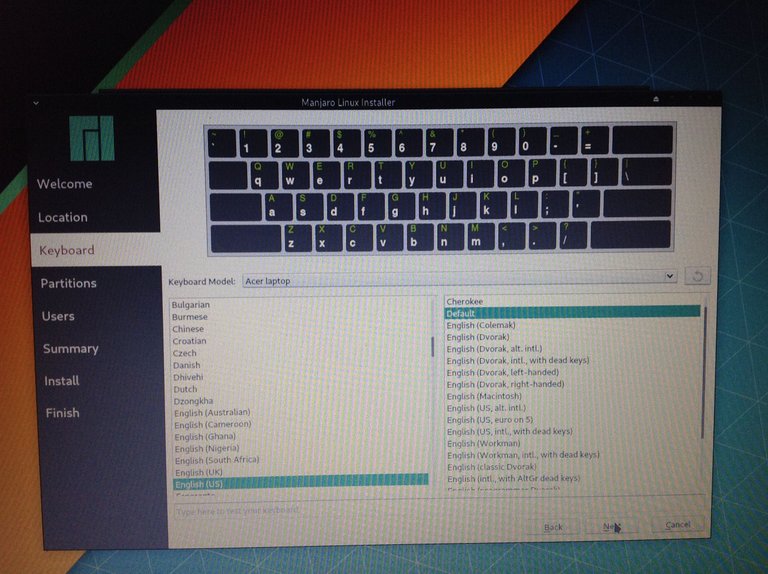
- Choose Keyboard model and set it as you want/like.
- Set your account, administrator username and password.

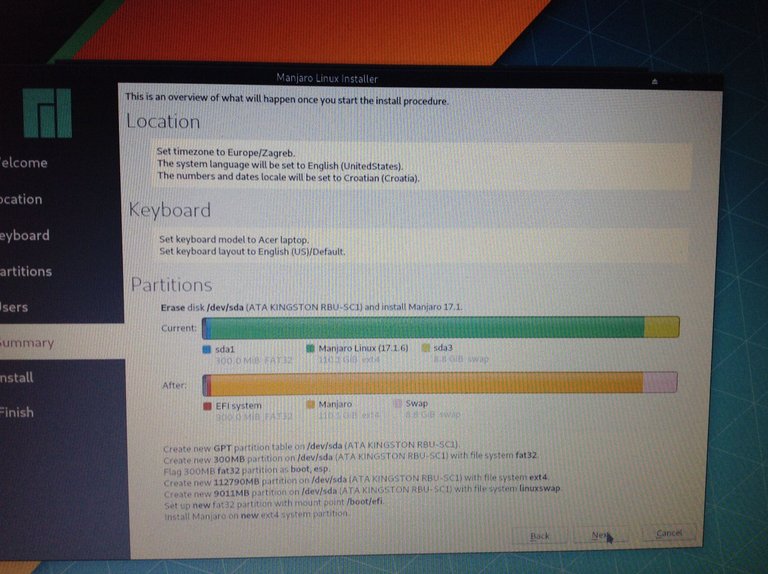
- Choose Erase disk, standalone or option that you like. Then click Next.
- You can see what will install, where and how will it look after install on HDD. Click Next.
- Click Install now.
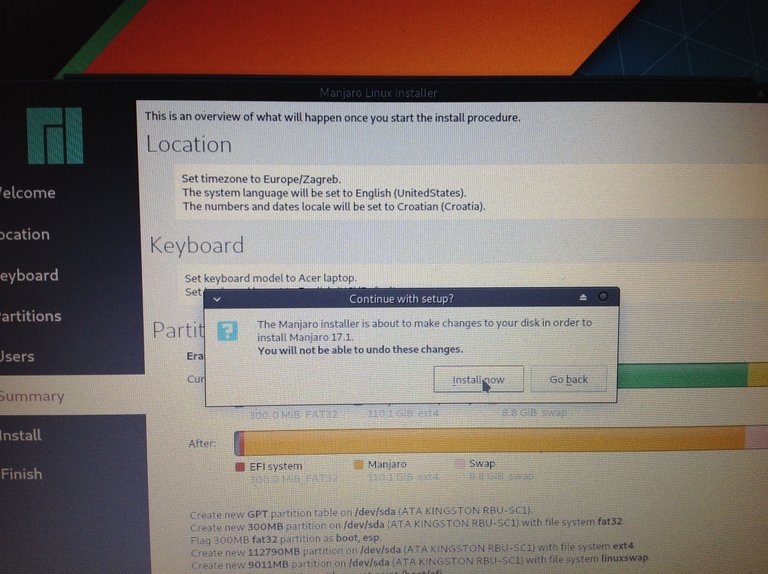
- Wait for it.

- Finish it.
Sometimes installation can crash on installing grub2 or other. Google for specific problem if you got. It's not always the same madness that you get when installing. If doesn't work you can always switch easly on Windows 10 or which one you like. If even doesn't work you can always try this with older versions/editions of Linux. Arch is hard to install, Mint is not bad. But if even then doesn't work, try Ubuntu. If even then doesn't work, you have to grind much further.
Brought to you by @mrnastykilla 
Thank you for reading and support. Farewell.

Ilmu yang membuat wawasan bisa terbuka, terima saya sudah memberikan inspirasi yang hebat ini
Thank you :)
Wow greate article!
Thanks for using the @postdoctor service!
We love Linux. We are interested in updating ubuntu or change it to other in our laptop