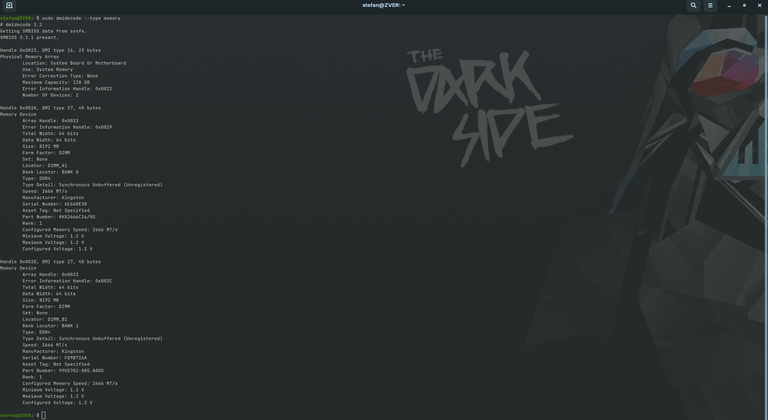
How much RAM does your computer have? and better, how can you get detailed information about your RAM? If you wanna upgrade your computer’s memory this information will be useful
I found a command that gave me all the necessary information and much more. The information we will see when typing this command will be very detailed, from the amount of memory slots that the PC has available, speed, latency, type and many more things.
dmidecode
To type the command in question we have to open the Ubuntu Terminal and put the following:
sudo dmidecode --type memoryYes, you need sudo. Enter your password and we will see something similar to the following:
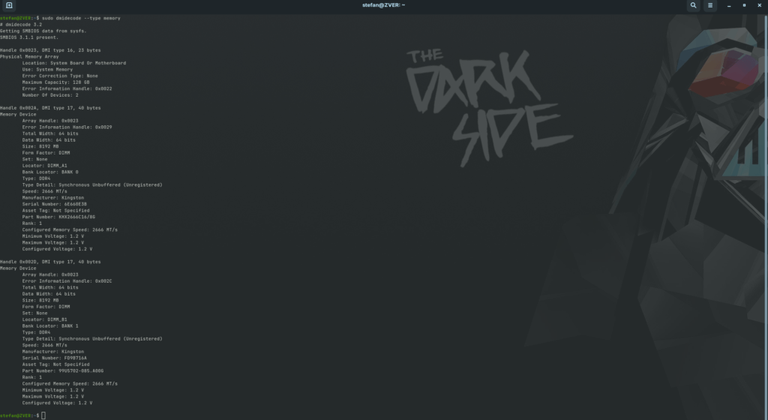
As you can see in the image we have a lot of data about the RAM that we have in our computer. With the data you are able to see on the screen you can buy the right memory to upgrade your computer/laptop or server.
The most advisable thing if we are going to extend the RAM of a computer is to have a couple of slots occupied and that they are equal, that way we can take advantage of the Dual Channel technology and our computer will go faster.
free
Another command that can be useful to see the amount of RAM installed in our computer and see how busy and free is “free”, if we run in the Ubuntu Terminal will see the following on the screen:
free -hAs you can see this command shows us the RAM we currently have in the computer how much is occupied and how much is free and also shows us information about the state of the Swap.

For a detailed overview of the free command, check this page: https://pcx3.com/linux/checking-memory-usage-with-free/
top
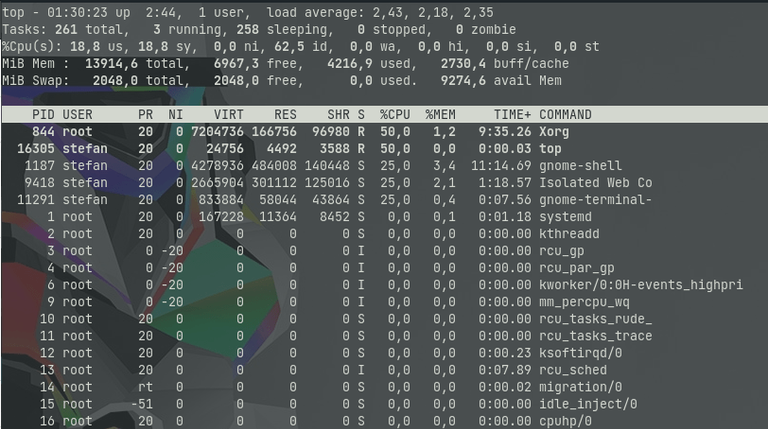
The top command provides a dynamic real-time view of a running system including a quick summary information about RAM, CPU also as a list of tasks currently being managed by the Linux kernel. Type the following command:
top
vmstat
The vmstat command can display memory statistics including additional information about processes, paging, block IO, traps, and cpu activity. Type the following command:
vmstat -s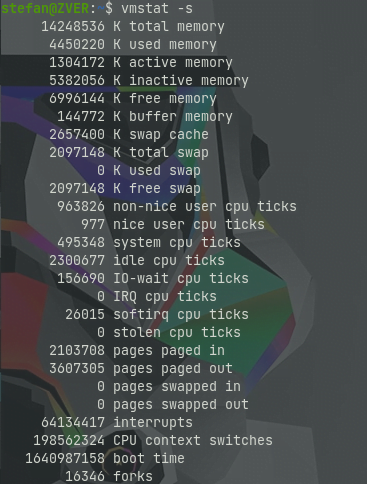
Have any of these commands been helpful to you?
Congratulations @pcx3! You have completed the following achievement on the Hive blockchain and have been rewarded with new badge(s):
Your next target is to reach 20 posts.
You can view your badges on your board and compare yourself to others in the Ranking
If you no longer want to receive notifications, reply to this comment with the word
STOPTo support your work, I also upvoted your post!
Check out the last post from @hivebuzz:
Support the HiveBuzz project. Vote for our proposal!
Didn't even know these existed, works fine on MX Linux.